要在 Debian 12 上安装 phpMyAdmin 并配置其与 Apache 协同工作,您可以按照以下步骤操作:
步骤 1:以 root 用户身份或具有 sudo 权限运行以下命令,更新系统上的软件包列表:
sudo apt update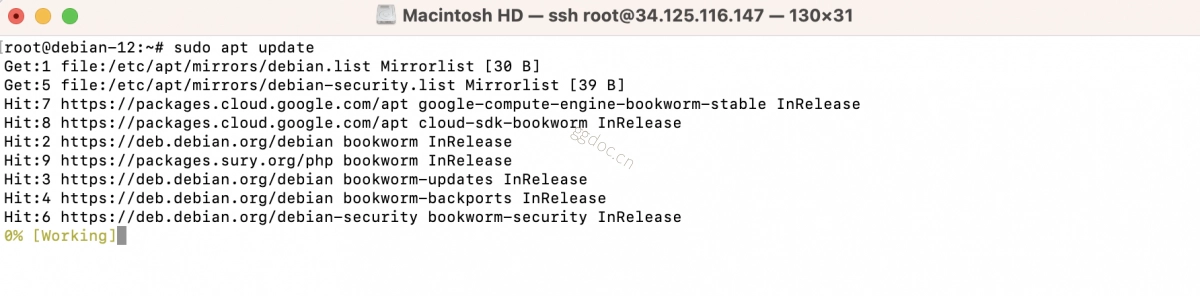
步骤 2:运行以下命令安装 phpMyAdmin 软件包:
sudo apt install phpmyadmin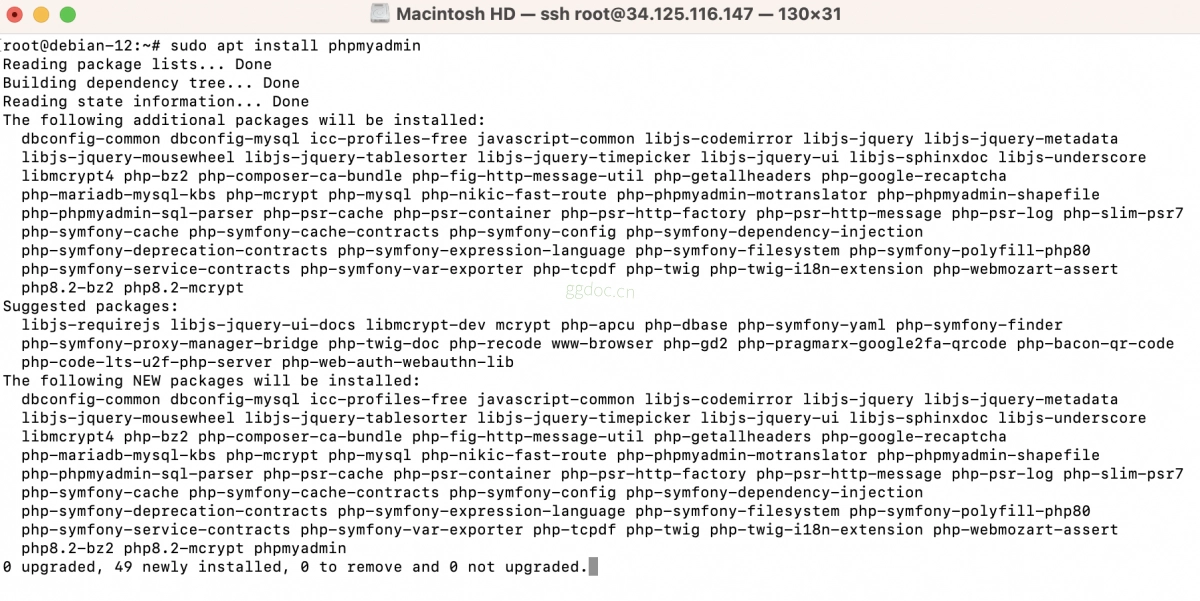
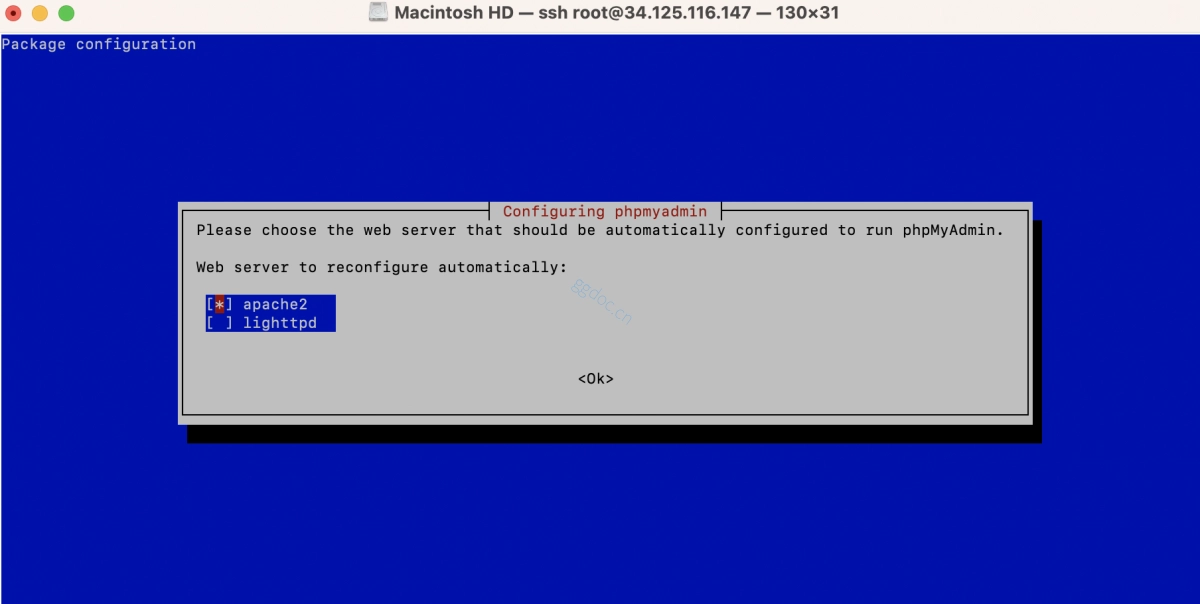
在安装过程中,系统会提示您选择 Web 服务器。请使用方向键选择 "apache2" 并按 Enter 键继续。
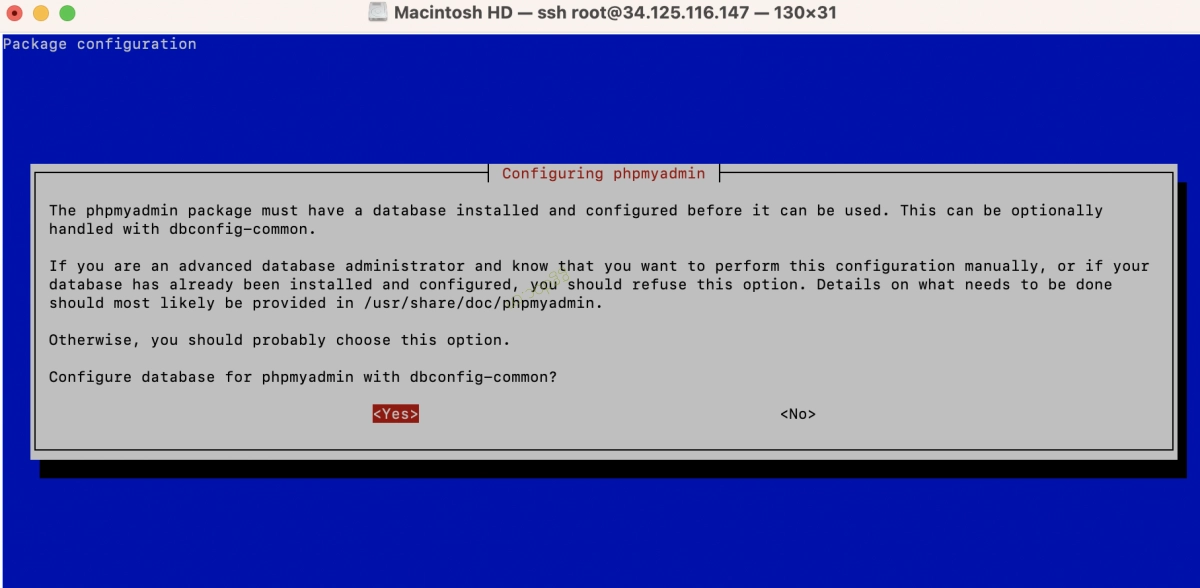
步骤 3:在安装期间,系统还会提示您为 phpMyAdmin 配置数据库。请选择 "Yes"(是)并按 Enter 键继续。
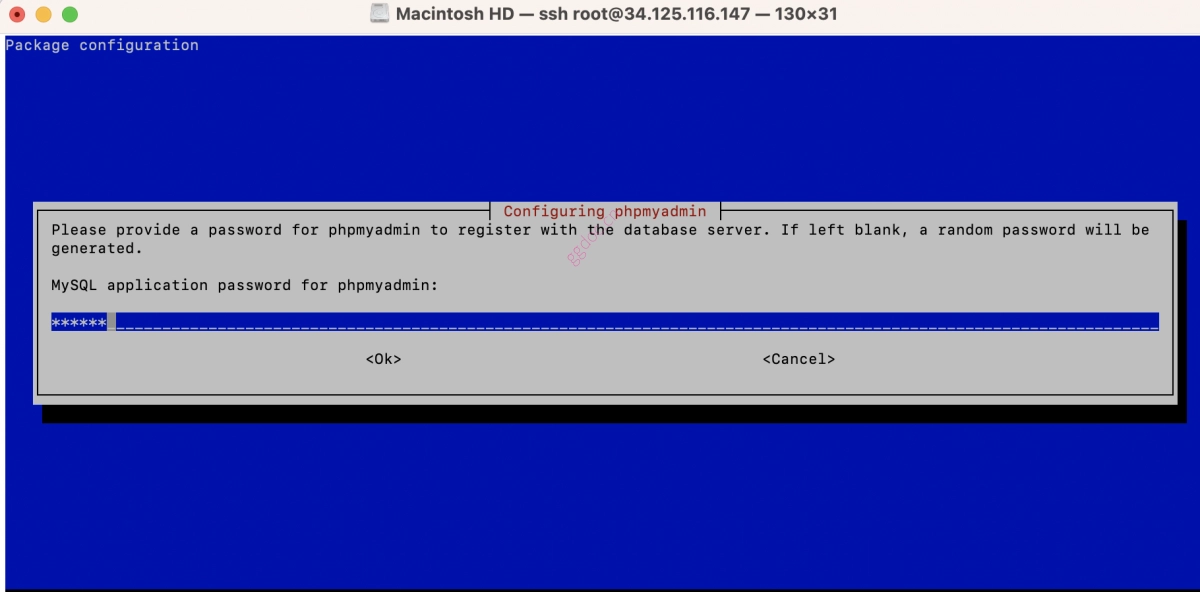
步骤 4:接下来,系统会提示您为 phpMyAdmin 应用程序设置密码。请选择一个强密码。
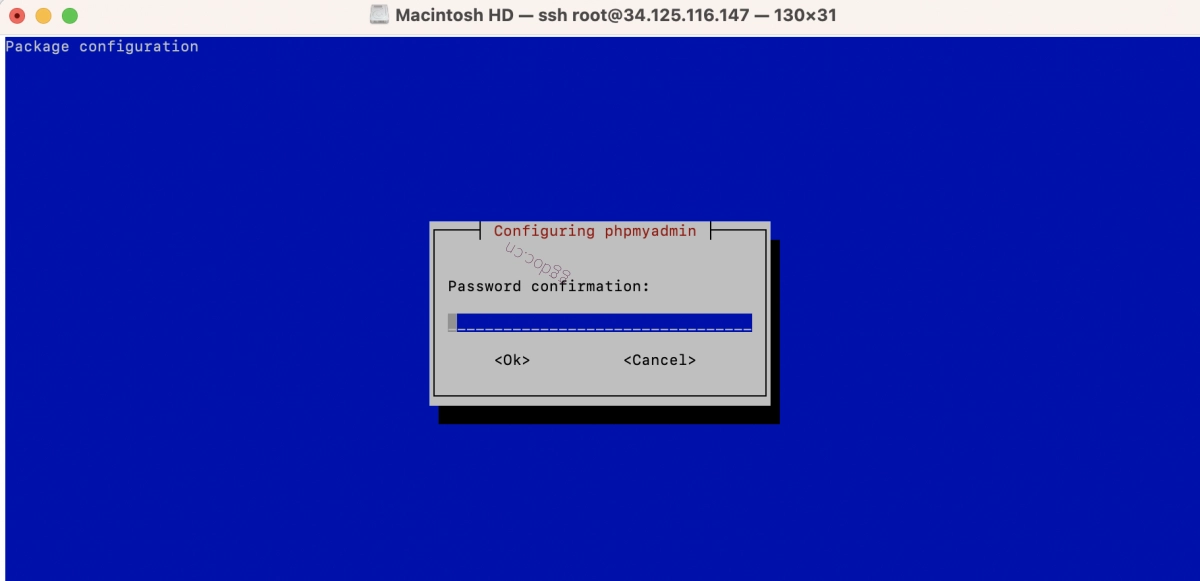
步骤 5:确认密码
步骤 6:安装完成后,phpMyAdmin 应已自动配置好与 Apache 的集成。但是,我们需要启用 PHP mcrypt 扩展以使 phpMyAdmin 正常工作。请运行以下命令来启用它:
sudo phpenmod mcrypt
步骤 7:现在,我们需要启用 phpMyAdmin 的 Apache 配置。请运行以下命令创建符号链接:
sudo ln -s /etc/phpmyadmin/apache.conf /etc/apache2/conf-available/phpmyadmin.conf步骤 8:通过运行以下命令启用新创建的配置文件:
sudo a2enconf phpmyadmin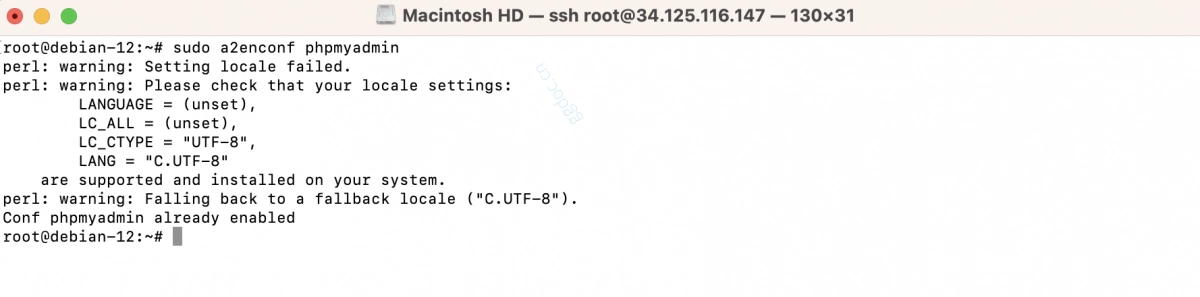
步骤 9:重启 Apache 以使更改生效:
sudo systemctl restart apache2
步骤 10:现在,您应该能够通过打开 Web 浏览器并输入以下 URL 来访问 phpMyAdmin:
http://your-server-ip/phpmyadmin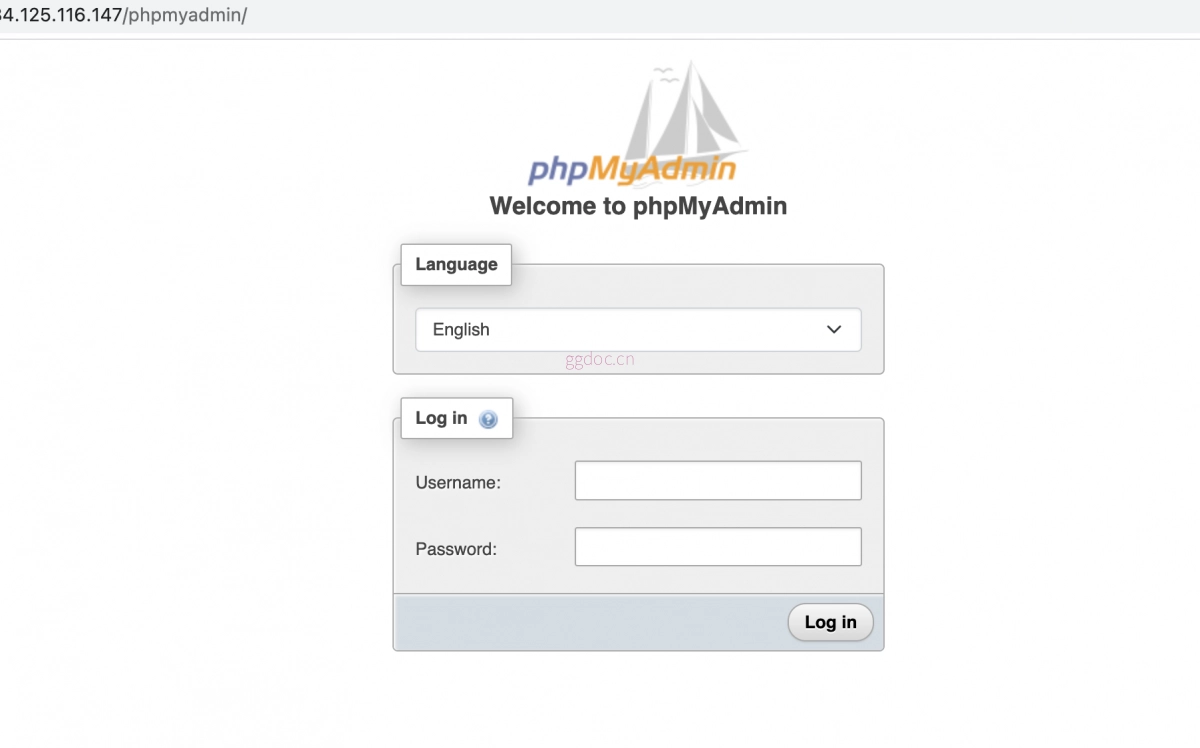
请将 "your-server-ip" 替换为您服务器的 IP 地址或域名。系统将提示您输入在 phpMyAdmin 安装期间设置的用户名和密码。
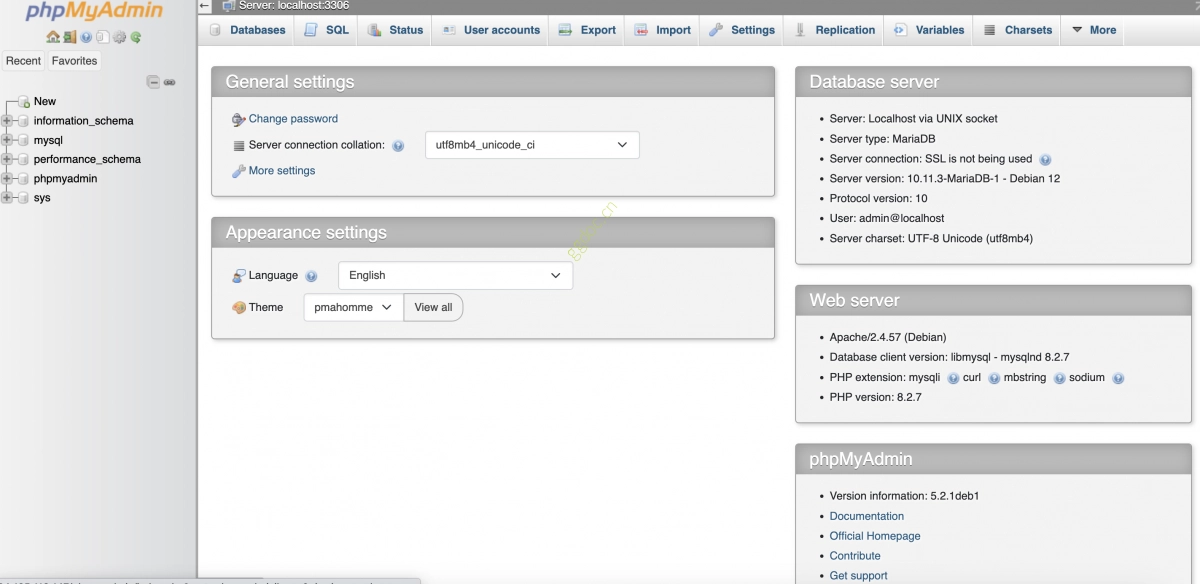
phpMyAdmin 现已安装在 Debian 12 上并配置好与 Apache 协同工作。您可以通过基于 Web 的界面使用 phpMyAdmin 管理您的 MySQL 或 MariaDB 数据库。