主题的 theme.json 文件是整理编辑器体验的最佳方式之一,很可能是在使用更复杂的解决方案之前首先使用的工具。
提供默认控件/选项
由于 theme.json 充当配置工具,因此有多种方式可以在细粒度级别定义可用的选项。本节将以 duotone 为例,因为它展示了一个跨越几个块的功能,并允许不同级别的访问权限。
具有核心选项和针对每个图像相关块的自定义的 Duotone:
{
    "version": 3,
    "settings": {
        "color": {
            "customDuotone": true,
            "duotone": [
            ]
        }
    }
}
具有主题定义的彩色选项、核心选项和针对每个图像相关块的自定义的 Duotone:
{
    "version": 3,
    "settings": {
        "color": {
            "duotone": [
                {
                    "colors": [ "#000000", "#ffffff" ],
                    "slug": "foreground-and-background",
                    "name": "Foreground and background"
                },
                {
                    "colors": [ "#000000", "#ff0200" ],
                    "slug": "foreground-and-secondary",
                    "name": "Foreground and secondary"
                },
                {
                    "colors": [ "#000000", "#7f5dee" ],
                    "slug": "foreground-and-tertiary",
                    "name": "Foreground and tertiary"
                },
            ]
        }
    }
}
具有定义的默认选项且所有自定义功能都可用于文章特色图像块的 Duotone:
{
    "version": 3,
    "settings": {
        "color": {
            "custom": true,
            "customDuotone": true
        },
        "blocks": {
            "core/post-featured-image": {
                "color": {
                    "duotone": [
                        {
                            "colors": [ "#282828", "#ff5837" ],
                            "slug": "black-and-orange",
                            "name": "Black and Orange"
                        },
                        {
                            "colors": [ "#282828", "#0288d1" ],
                            "slug": "black-and-blue",
                            "name": "Black and Blue"
                        }
                    ],
                    "customDuotone": true,
                    "custom": true
                }
            }
        }
    }
}
仅具有定义的默认选项且核心选项可用于文章特色图像块(无自定义)的 Duotone:
{
    "version": 3,
    "settings": {
        "color": {
            "custom": true,
            "customDuotone": true
        },
        "blocks": {
            "core/post-featured-image": {
                "color": {
                    "duotone": [
                        {
                            "colors": [ "#282828", "#ff5837" ],
                            "slug": "black-and-orange",
                            "name": "Black and Orange"
                        },
                        {
                            "colors": [ "#282828", "#0288d1" ],
                            "slug": "black-and-blue",
                            "name": "Black and Blue"
                        }
                    ],
                    "customDuotone": false,
                    "custom": false
                }
            }
        }
    }
}
使用 theme.json 限制界面选项
按块限制选项
除了定义默认值之外,使用 theme.json 还可以完全移除选项,转而依赖主题已设置的内容。下面是显示同一段落块的两种极端情况的视觉图:
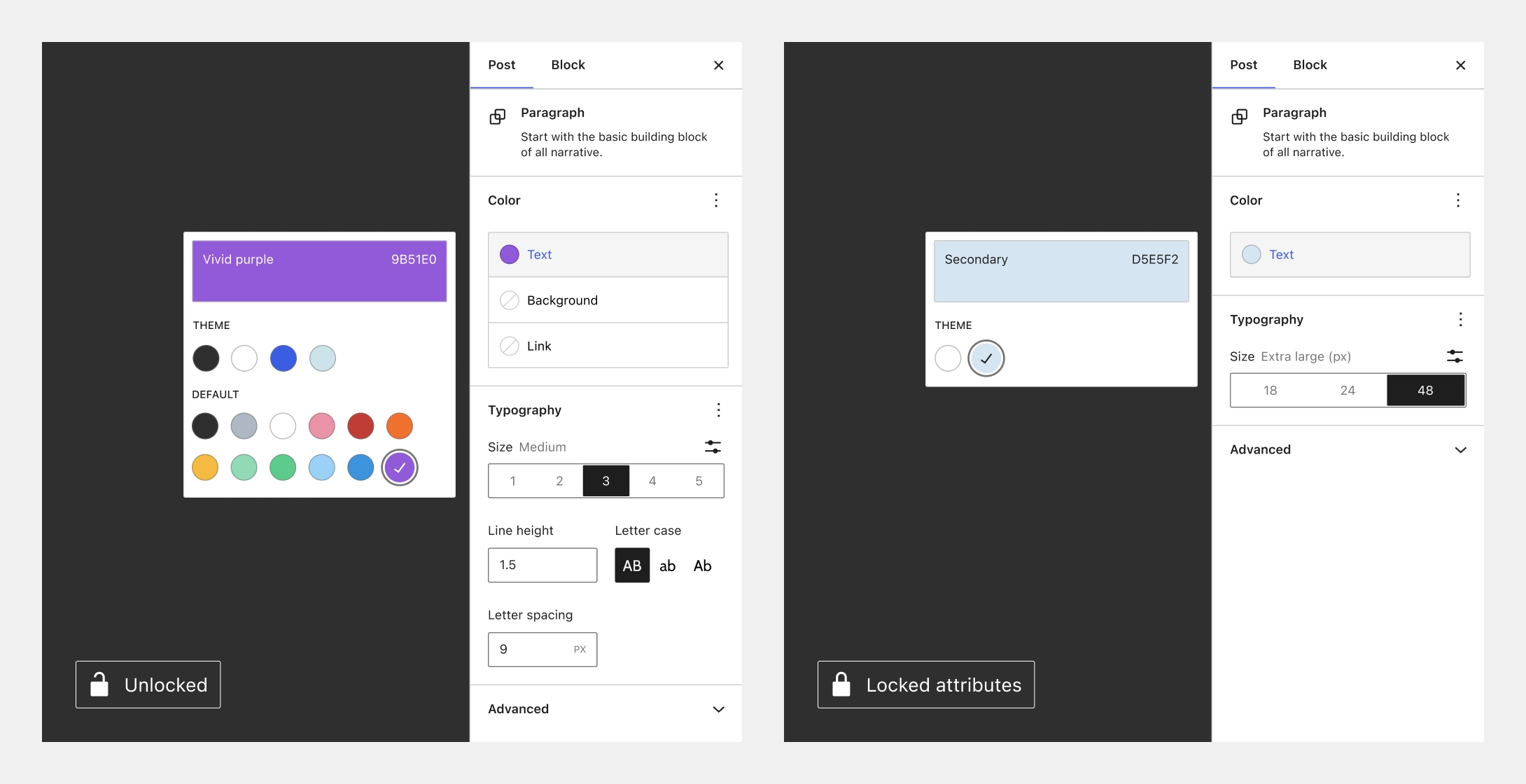
继续使用 duotone 的示例,这意味着您可以允许对图像块的所有 Duotone 功能进行完全访问,并仅像这样限制文章特色图像块:
{
    "version": 3,
    "settings": {
        "color": {
            "custom": true,
            "customDuotone": true
        },
        "blocks": {
            "core/image": {
                "color": {
                    "duotone": [],
                    "customDuotone": true,
                    "custom": true
                }
            },
            "core/post-featured-image": {
                "color": {
                    "duotone": [],
                    "customDuotone": false,
                    "custom": false
                }
            }
        }
    }
}
您可以在 此处 阅读更多关于如何使用 theme.json 打开/关闭选项的最佳方法。
禁用继承默认布局
要禁用容器块(如组块)的“继承默认布局”设置,请移除以下部分:
"layout": {
    "contentSize": null,
    "wideSize": null
},
全局限制选项
在块或经典主题中使用 theme.json 时,这些设置将阻止默认的颜色和排版控件在全局启用,极大地限制了可能性:
{
    "version": 3,
    "settings": {
        "layout": {
            "contentSize": "750px"
        },
        "color": {
            "background": false,
            "custom": false,
            "customDuotone": false,
            "customGradient": false,
            "defaultGradients": false,
            "defaultPalette": false,
            "text": false
        },
        "typography": {
            "customFontSize": false,
            "dropCap": false,
            "fontStyle": false,
            "fontWeight": false,
            "letterSpacing": false,
            "lineHeight": false,
            "textDecoration": false,
            "textTransform": false
        }
    }
}
要启用上述内容中的某项,只需将您想要更改的值设置为 true 以获得更细粒度的控制。