此插件仅适用于付费 TinyMCE 订阅。
Page Embed插件使用 iframe(内联框架)在内容中嵌入页面。这些 iframe 的大小可以配置为响应式或其他用户定义的尺寸。使用 iframe 的功能有助于创建视觉上吸引人的内容,这对于以下场景非常有用:
在线课程和学习材料。
在线广告
创建多媒体内容
试用我们的 Page Embed 插件演示
HTML
<textarea id="page-embed">
  <p><img style="display: block; margin-left: auto; margin-right: auto;" title="Tiny Logo" src="https://www.tiny.cloud/docs/tinymce/latest/_images/logos/android-chrome-256x256.png" alt="TinyMCE Logo" width="128" height="128"></p>

  <h2 style="text-align: center;">欢迎使用 TinyMCE 编辑器演示!</h2>

  <h2>有问题或需要帮助?</h2>

  <ul>
    <li>我们的<a href="https://www.tiny.cloud/docs/tinymce/8/">文档</a>是学习如何配置 TinyMCE 的绝佳资源。</li>
    <li>有具体问题?请尝试在 Stack Overflow 上使用<a href="https://stackoverflow.com/questions/tagged/tinymce" target="_blank" rel="noopener"><code>tinymce</code>标签。</a></li>
    <li>作为<a href="https://www.tiny.cloud/pricing">TinyMCE 高级计划</a>的一部分,我们还提供企业级支持。</li>
  </ul>

  <h2>一个可供操作的简单表格</h2>

  <table style="border-collapse: collapse; width: 100%;" border="1">
    <thead>
      <tr>
        <th>产品</th>
        <th>成本</th>
        <th>真的吗?</th>
      </tr>
    </thead>
    <tbody>
      <tr>
        <td style="text-align: center;">TinyMCE</td>
        <td style="text-align: center;">免费</td>
        <td style="text-align: center;">是的!</td>
      </tr>
    </tbody>
  </table>

  <h2>发现了错误?</h2>

  <p>
    如果您认为发现了错误,请在<a href="https://github.com/tinymce/tinymce/issues">GitHub 仓库</a>上创建一个 issue 以向开发人员报告。
  </p>

  <h2>最后...</h2>

  <p>
    您的应用需要文件上传功能吗?考虑将<a href="https://www.tiny.cloud/docs/tinymce/latest/uploadcare/" target="_blank" rel="noopener noreferrer">Uploadcare</a>与 TinyMCE 结合使用,以获得快速、现代的上传体验。
  </p>
  <p>
    感谢您支持 TinyMCE!希望它能帮助您和您的用户创建出色的内容。<br>来自 TinyMCE 团队的最诚挚问候。
  </p>
</textarea>
CSS
.tiny-pageembed--21by9,
.tiny-pageembed--16by9,
.tiny-pageembed--4by3,
.tiny-pageembed--1by1 {
  display: block;
  overflow: hidden;
  padding: 0;
  position: relative;
  width: 100%;
}

.tiny-pageembed--21by9::before,
.tiny-pageembed--16by9::before,
.tiny-pageembed--4by3::before,
.tiny-pageembed--1by1::before {
  content: "";
  display: block;
}

.tiny-pageembed--21by9::before {
  padding-top: 42.857143%;
}

.tiny-pageembed--16by9::before {
  padding-top: 56.25%;
}

.tiny-pageembed--4by3::before {
  padding-top: 75%;
}

.tiny-pageembed--1by1::before {
  padding-top: 100%;
}

.tiny-pageembed--21by9 iframe,
.tiny-pageembed--16by9 iframe,
.tiny-pageembed--4by3 iframe,
.tiny-pageembed--1by1 iframe {
  border: 0;
  height: 100%;
  left: 0;
  position: absolute;
  top: 0;
  width: 100%;
}
JS
tinymce.init({
  selector: 'textarea#page-embed',
  plugins: 'pageembed code preview',
  toolbar: 'pageembed code preview',
  tiny_pageembed_classes: [
    { text: 'Big embed', value: 'my-big-class' },
    { text: 'Small embed', value: 'my-small-class' }
  ],
  height: 500,
  content_style: 'body { font-family:Helvetica,Arial,sans-serif; font-size:16px }'
});
创建 Page Embed 工具栏按钮
使用以下脚本创建一个 Page Embed 工具栏按钮:
tinymce.init({
  selector: 'textarea',  // change this value according to your HTML
  plugins: 'pageembed',
  toolbar: 'pageembed'
});有关使用模块打包工具与此插件捆绑的信息,请参阅捆绑 TinyMCE - 概述。
结果: (页面嵌入) 按钮出现在工具栏菜单中。
使用 Page Embed
使用以下步骤在内容中嵌入 iframe:
点击
(页面嵌入) 工具栏按钮。此时会显示 插入/编辑 Iframe 对话框。
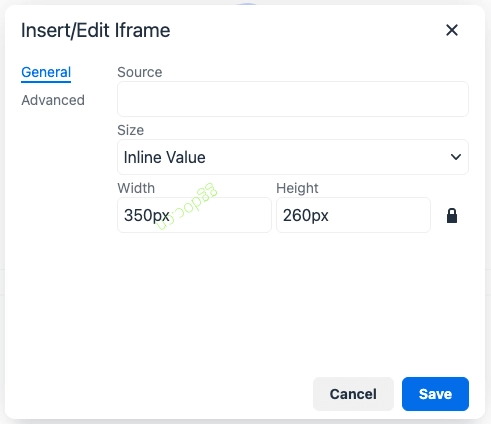
在 常规 选项卡中,在 源 字段中输入 url,或者点击
 (源) 图标以上传文件。
要设置 iframe 的大小,请从 大小 下拉菜单中选择首选选项。
内联值 用于在一行内插入 iframe。要设置内联 iframe 的尺寸,请在 宽度 和 高度 输入框中提供以像素为单位的值。
默认值为Width
350px和 Height260px。点击 (Constrain Proportions) 锁定图标以更改默认值。
仅当选择了 Inline Value 值选项时,Width 和 Height 字段才可用。
Responsive 用于通过 CSS 使嵌入内容响应式,使视频和日历等内容随浏览器视口调整大小。提供了四个选项来设置响应式 iframe 大小。
Responsive-21X9
Responsive-16X9
Responsive-4X3
Responsive-1X1
Responsive 选项具有预定义的宽度和高度值。如果选择了某个 Responsive 值,Width 和 Height 字段将不可用。
在 Advanced 选项卡中,在 Name 和 Title 字段中为 iframe 提供名称和标题。
当简短的文本替代项无法充分传达 iframe 中提供的功能或信息时,可以使用 Long description URL 字段通过包含单独资源中的文本来描述 iframe。
点击
(Long description URL) 图标上传描述文件。
勾选 Show iframe border 复选框以显示 iframe 边框。
勾选 Scrollbar 复选框以在 iframe 中添加滚动条。
点击 Save 保存并退出,或点击 Cancel 取消并退出。
Result: 会在内容中所需位置插入一个配置好大小的 iframe。
并非所有页面都允许嵌入,因为 X-Frame-Options 头可以设置为阻止嵌入。有关更多信息,请参阅此页面。
Options
tiny_pageembed_classes
tiny_pageembed_classes 接受一个对象数组,该数组具有 text 和 value 属性,这些属性将填充插件对话框中的尺寸选择字段。
Type: Array
Default value:
[
  {
    text: 'Responsive - 21x9',
    value: 'tiny-pageembed--21by9'
  },
  {
    text: 'Responsive - 16x9',
    value: 'tiny-pageembed--16by9'
  },
  {
    text: 'Responsive - 4x3',
    value: 'tiny-pageembed--4by3'
  },
  {
    text: 'Responsive - 1x1',
    value: 'tiny-pageembed--1by1'
  }
]
Example: using tiny_pageembed_classes
tinymce.init({
  selector: 'textarea',  // change this value according to your HTML
  plugins: 'pageembed',
  toolbar: 'pageembed',
  tiny_pageembed_classes: [
    { text: 'Big embed', value: 'my-big-class' },
    { text: 'Small embed', value: 'my-small-class' }
  ]
});
Example: disable select
当 tiny_pageembed_classes 值设置为空数组时,尺寸选择字段将不可用,只能设置精确尺寸。使用以下脚本通过 tiny_pageembed_classes 选项禁用 select:
tinymce.init({
  selector: 'textarea',  // change this value according to your HTML
  plugins: 'pageembed',
  toolbar: 'pageembed',
  tiny_pageembed_classes: []
});
tiny_pageembed_inline_styles
tiny_pageembed_inline_styles 选项将在渲染嵌入内容时内联所有样式,同时保留 CSS 类。当无法将额外的 CSS 类添加到网站时,此选项很有用。默认为 false。
Type: Boolean
Default value: false
Possible values: true, false
Example: tiny_pageembed_inline_styles
要内联页面嵌入样式:
tinymce.init({
  selector: 'textarea',  // change this value according to your HTML
  plugins: 'pageembed',
  tiny_pageembed_inline_styles: true
});
Toolbar buttons
Page Embed 插件提供以下工具栏按钮:
| Toolbar button identifier | Description |
|---|---|
| 打开插入或编辑 iframe 对话框。 |
可以使用以下方式将这些工具栏按钮添加到编辑器:
Menu items
Page Embed 插件提供以下菜单项:
| Menu item identifier | Default Menu Location | Description |
|---|---|---|
| 插入 | 打开插入或编辑iframe对话框。 |
可以通过以下方式将这些菜单项添加到编辑器中:
menu配置选项。contextmenu配置选项。
默认CSS
如果 tiny_pageembed_classes 设置未定义,将使用默认类。因此,可以选择响应式尺寸选项。
必须将以下CSS脚本添加到网页中,才能使默认CSS正常工作。
.tiny-pageembed--21by9,
.tiny-pageembed--16by9,
.tiny-pageembed--4by3,
.tiny-pageembed--1by1 {
  display: block;
  overflow: hidden;
  padding: 0;
  position: relative;
  width: 100%;
}

.tiny-pageembed--21by9 {
  padding-top: 42.857143%;
}

.tiny-pageembed--16by9 {
  padding-top: 56.25%;
}

.tiny-pageembed--4by3 {
  padding-top: 75%;
}

.tiny-pageembed--1by1 {
  padding-top: 100%;
}

.tiny-pageembed--21by9 iframe,
.tiny-pageembed--16by9 iframe,
.tiny-pageembed--4by3 iframe,
.tiny-pageembed--1by1 iframe {
  border: 0;
  height: 100%;
  left: 0;
  position: absolute;
  top: 0;
  width: 100%;
}
有关配置CSS的更多信息,请参阅 content_css 部分。